API Keys
API keys provide programmatic access to the Intelligence Hub agents. When you create an API key, a license file is generated that contains your private API access ID and secret. This license file is used to authenticate the MCP server and other integrations with the Intelligence Hub backend. You can create, view, and manage API keys from the API Keys section of the Intelligence Hub.
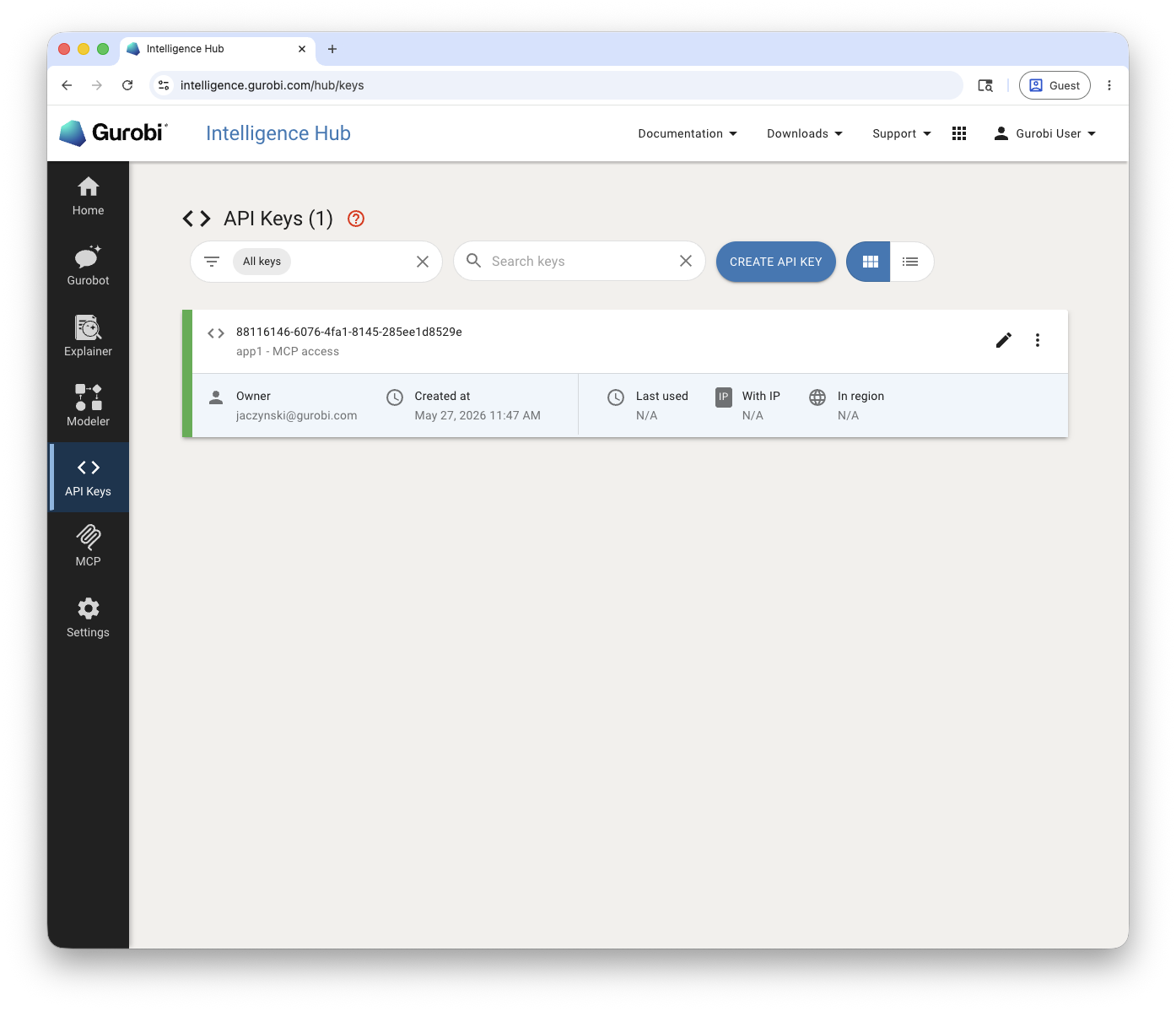
Creating an API Key
Click API Keys in the left sidebar.
Click the CREATE API KEY button.
In the dialog that appears, enter an application name and an optional description for the key.
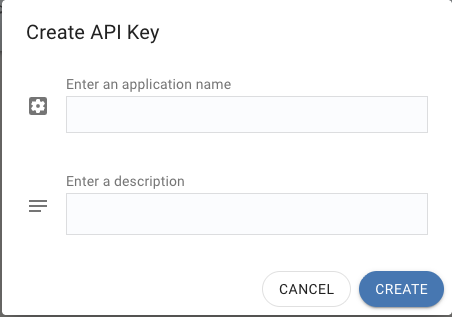
Click CREATE. The new API key is displayed along with a download button.
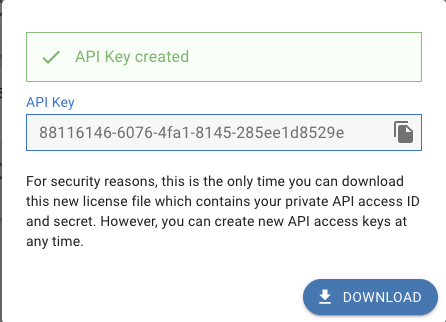
Copy the key or click DOWNLOAD to save the license file containing your private API access ID and secret.
Important
For security reasons, the key value and the license file can only be downloaded at creation time. Store them securely. You can create new API keys at any time if needed.
License File
The downloaded license file (gurobi-intelligence.lic) contains two
parameters needed to authenticate with the Intelligence Hub backend:
INTELLIGENCE_ACCESS_ID=...
INTELLIGENCE_SECRET=...
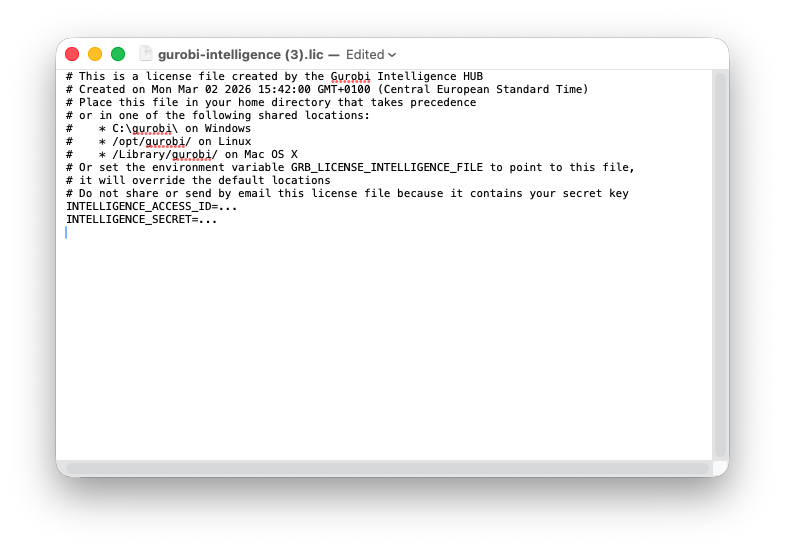
Place the license file in your home directory, or in one of the following shared locations:
C:\gurobi\on Windows/opt/gurobi/on Linux/Library/gurobi/on macOS
Alternatively, set the environment variable
GRB_LICENSE_INTELLIGENCE_FILE to point to the license file. This
overrides the default locations.
Warning
Do not share or send the license file by email. It contains your secret key.
Viewing API Keys
The API Keys page lists all keys associated with your account. Each key card displays:
Key ID: The unique identifier for the API key.
Application name: The name you assigned when creating the key.
Owner: The account email associated with the key.
Created at: The date and time the key was created.
Last used: The last time the key was used (N/A if never used).
With IP: The IP address from which the key was last used.
In region: The region from which the key was last used.
You can filter keys using the filter dropdown, search by name, and toggle between grid and list views using the view controls in the toolbar.
Managing API Keys
Each key card provides an edit button to modify the application name or description, and a menu with additional options. Use these controls to keep your keys organized and to revoke any that are no longer needed.