Gurobot
Gurobot is an AI-powered assistant that delivers instant, expert-level Gurobi support. It is designed to help you resolve issues faster, access expert guidance, and improve your overall experience with Gurobi products. Gurobot provides personalized, context-aware answers, code snippets, and documentation links backed by Gurobi’s knowledge base.
Features
Smart Documentation Links: Gurobot searches a curated knowledge base of up-to-date Gurobi documentation and examples, and can supplement its answers with web searches when needed. Responses include direct links to the most relevant documentation.
Built-in Best Practices: Receive guidance grounded in content backed by Gurobi experts.
Product and License Support: Ask questions about Gurobi Optimizer, Compute Server, Cluster Manager, and Instant Cloud. Gurobot can also look up your current license information.
Contextualized Responses: Get personalized responses that take your licensing information and conversation history into account.
Modeling Questions: Get quick answers to ad-hoc modeling questions— how to express a particular constraint, when to use one variable type over another, how to interpret solver output. For building a complete optimization project from a business problem, use the dedicated Modeler agent.
Code Generation and Review: Generate, review, rewrite, and convert optimization code across languages, with Python and
gurobipyas the default. Gurobot follows language-aware coding best practices and can run code to verify correctness.Easy Escalation: Turn any chat into a formal support request when human assistance is needed.
Using Gurobot
To open Gurobot, click Gurobot in the left sidebar or select the Gurobot card from the home page. The welcome screen presents two options:
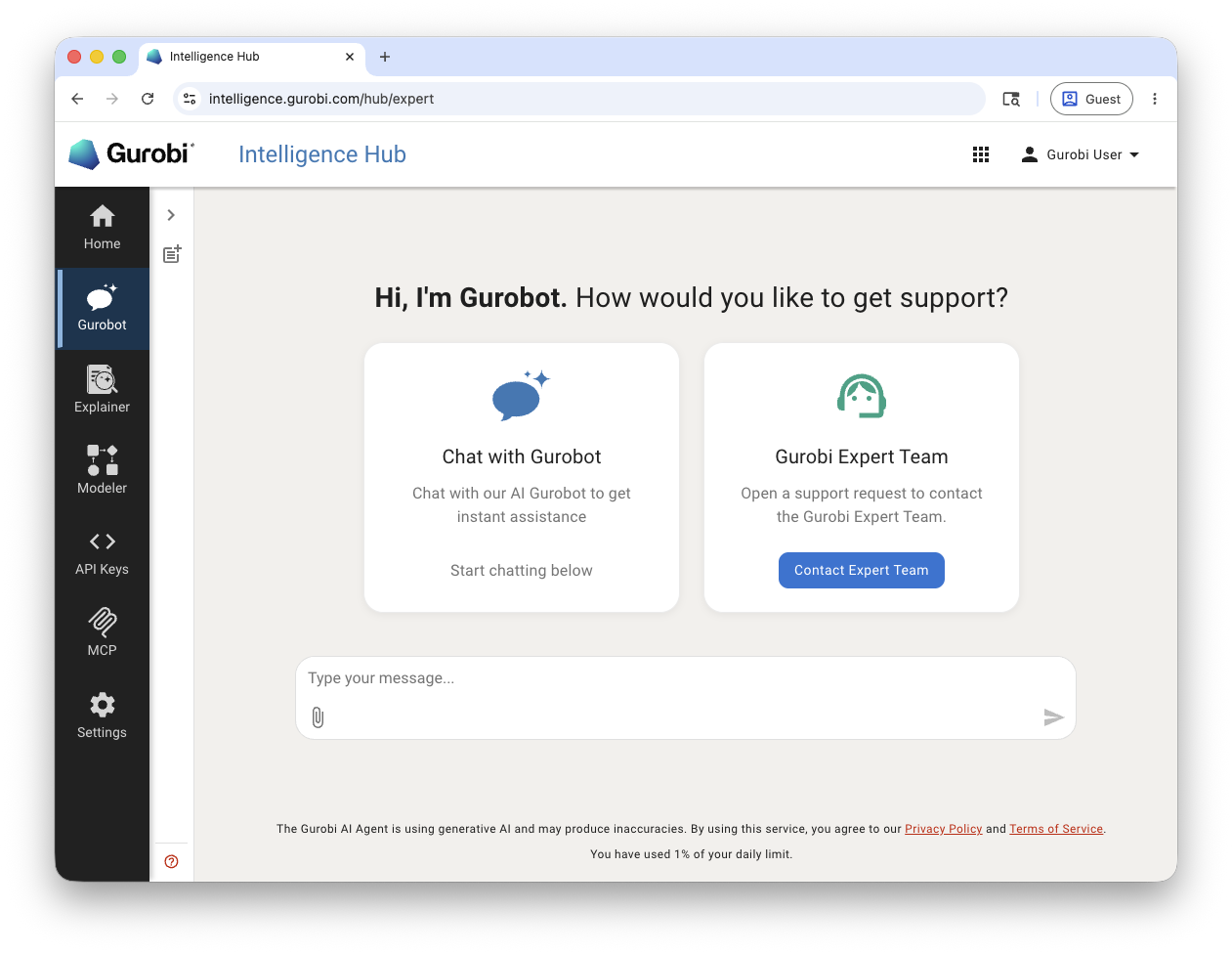
Chat with Gurobot: Start a conversation with the AI assistant for instant help with optimization questions, code, and documentation.
Gurobi Expert Team: Open a support request to contact the Gurobi support team directly. Commercial users can use this to go straight to human support if they prefer.
Starting a Chat
Type your message in the text field at the bottom of the screen.
You can attach files using the attachment icon next to the text field.
Press the send button or hit Enter to submit your message.
Gurobot responds with context-aware answers that may include:
Explanations and recommendations
Code snippets in Python, Java, C++, and other supported languages
Links to relevant Gurobi documentation
Best practices for modeling and optimization
Gurobot can also generate files as part of its responses—for example,
complete gurobipy scripts, execution logs, or optimization reports. These
files are saved to the conversation workspace and appear as
attachments that you can open, copy, or download. See the
Workspace section in the Overview for details.
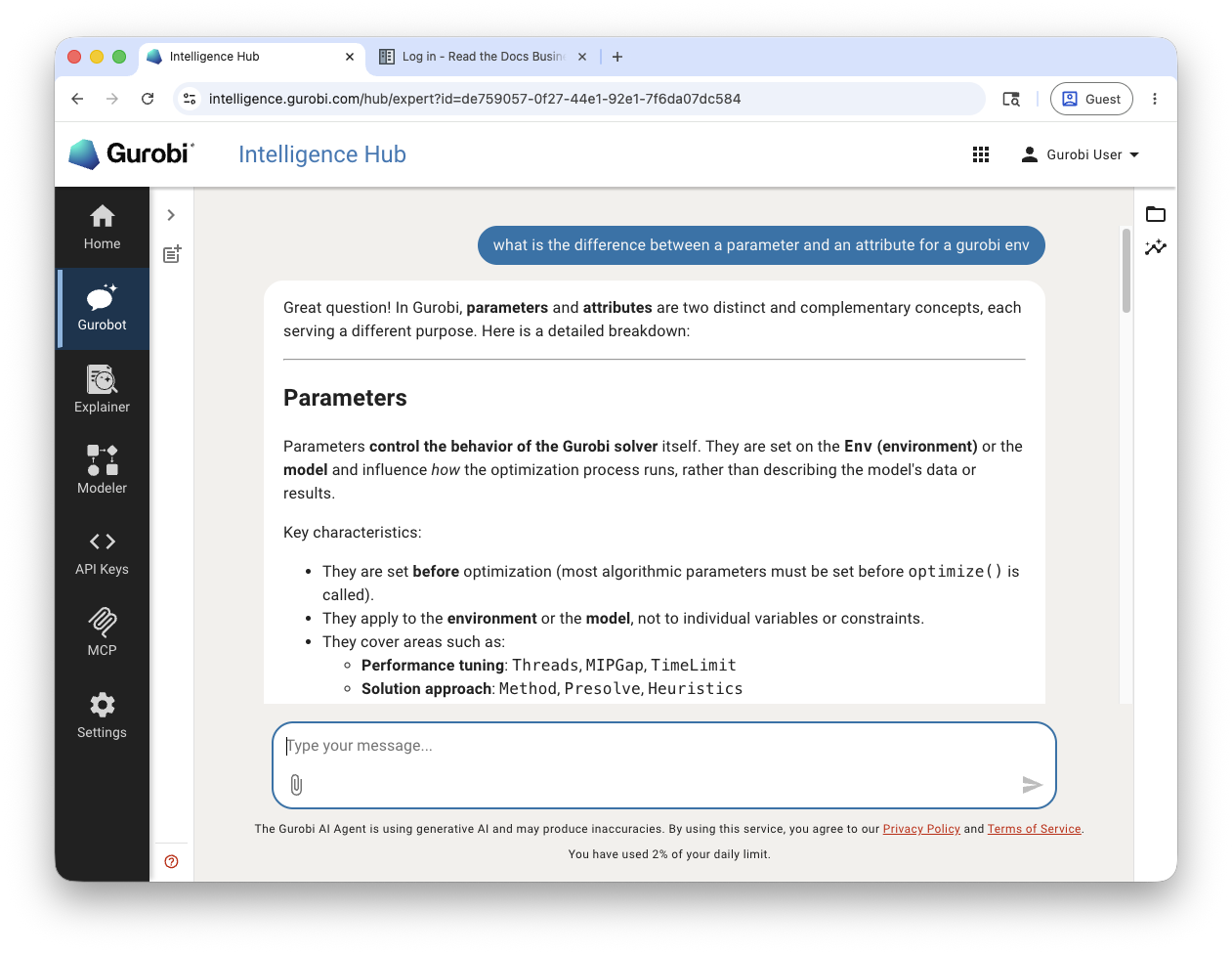
Each response includes action buttons to:
Copy the response text
Thumbs up / Thumbs down to rate the quality of the answer
Create a support request to escalate the conversation to the Gurobi support team
Managing Conversations
The sidebar panel provides conversation management features:
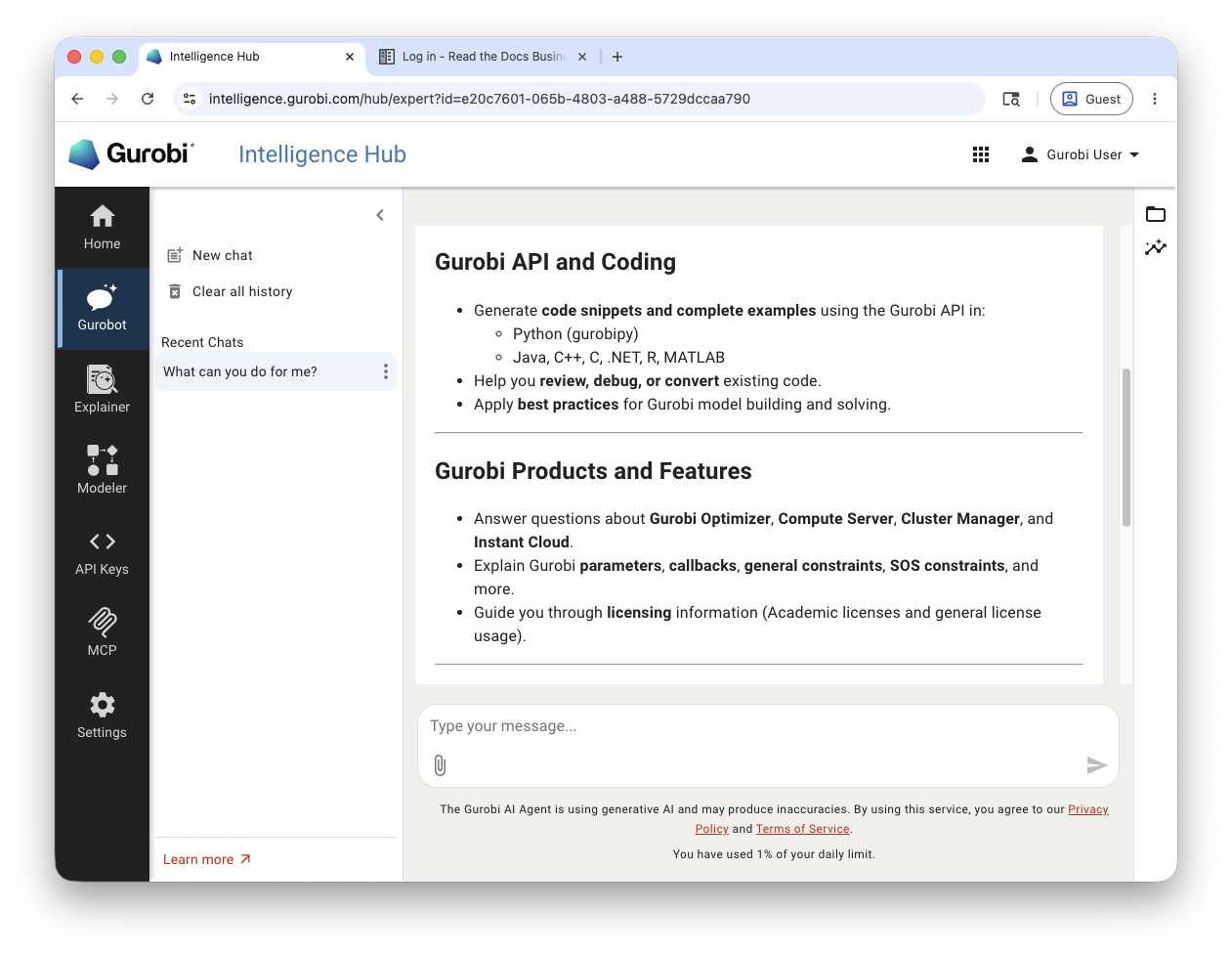
New chat: Start a fresh conversation.
Clear all history: Remove all previous conversations.
Recent Chats: Access your conversation history. Each chat is labeled with the first message or topic discussed.
Click the sidebar toggle arrow to expand or collapse the conversation panel.
Each chat in the sidebar has a … menu that lets you Rename or Delete the conversation.
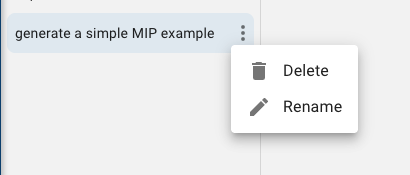
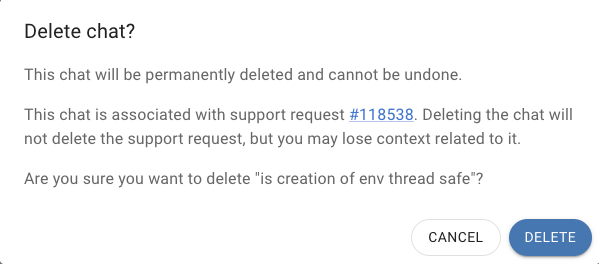
If the chat is associated with a support request, a confirmation dialog warns you that deleting the chat will not delete the support request but you may lose context related to it.
Support Escalation
If Gurobot cannot fully resolve your issue, you can escalate to human support directly from the chat. Click the Create a support request link below any response, or use the support request link displayed beneath the message input field.
When you create a support request, a dedicated AI agent automatically classifies and summarizes your conversation. The resulting ticket is pre-populated with a suggested category, title, and description that you can review and edit before submitting. A reference to the original chat is attached to the ticket so the support team has full context.
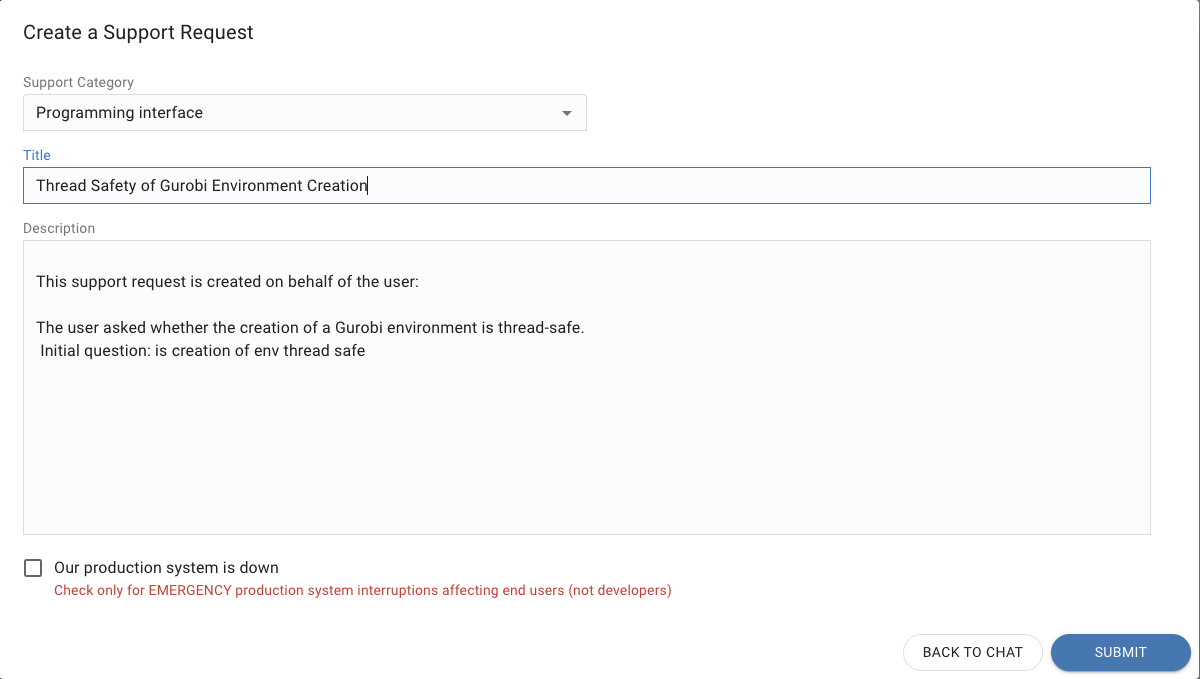
You can click BACK TO CHAT to return to Gurobot, or SUBMIT to send the request.
The escalation experience differs depending on your license type.
Commercial Users
You can open a support request at any point during the conversation, or go directly to support using the Gurobi Expert Team option on the Gurobot welcome screen if you prefer.
The support request form includes a production flag with the label “Our production system is down”. Check this only for emergency production system interruptions affecting end users.
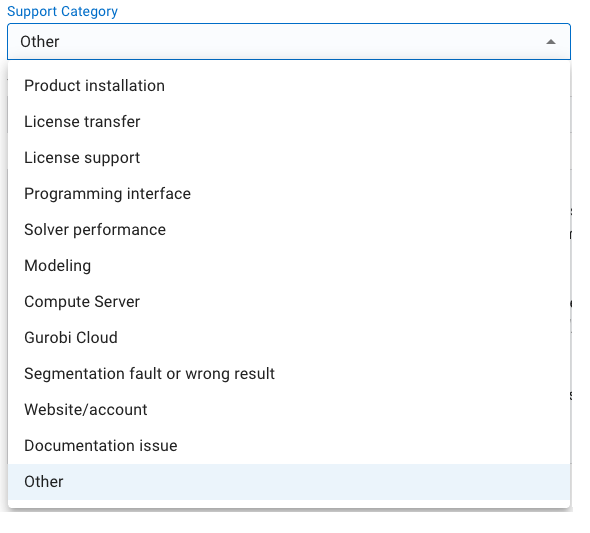
The available support categories are:
Academic Users
You are encouraged to describe your issue to Gurobot first so the conversation can be summarized in the ticket.
Academic support is limited to the following categories:
Installation issues
License key assistance
Bug reports
For all other questions, refer to the Gurobi Knowledge Base and the community discussion forum.
If you have not yet described the issue, you can still open a support request and fill in the category, title, and description manually.
The academic support request form does not include a production flag.
Academic Site License holders are directed to the standard support portal to submit their request.