MCP Server
The Intelligence Hub provides a Model Context Protocol (MCP) server that runs locally on your machine and connects to the Intelligence Hub backend. The MCP server exposes Gurobot, Explainer, and Modeler to MCP-compatible tools such as IDE extensions and AI coding assistants, so you can use them without leaving your development environment.
Design Rationale
The MCP server is delivered as a Docker container running locally on your machine. This is a deliberate design choice that addresses several limitations of the MCP protocol and provides concrete benefits over a purely cloud-hosted or in-process approach.
Simple installation and automatic updates. Docker is a single, widely available prerequisite. Pulling the latest image is all you need to pick up improvements and fixes—no package managers, version conflicts, or manual upgrades.
Working with large and binary files. MCP passes all data through the
agent context window. This works well for short questions and lightweight
integrations, but it cannot handle large files or binary formats. For
mathematical optimization work, the ability to read model files
(.lp, .mps) and compressed archives is essential.
Because the container runs locally, it can read input files directly from
your filesystem and write generated files—reports, scripts, formulations—
back to it, without routing any of that content through the MCP context.
Preserving output fidelity. Writing generated files directly to your local filesystem means the output from the Gurobi agents reaches you exactly as produced. If files were returned through MCP, the client-side AI assistant would need to relay or reconstruct them, introducing the risk of paraphrasing or altering the content.
Controlled filesystem access. The container can only access the root directory you explicitly mount, along with everything beneath it. It cannot read or upload files from the rest of your system—even if an agent were somehow misdirected. This gives you a clear, auditable boundary around what the MCP server can touch.
Credential isolation. Your Gurobi Intelligence credentials are passed to the container as environment variables and used only inside it. They are never written into a project configuration file or MCP client config that could be accidentally committed or shared.
Standard observability. Because the MCP server runs as a named Docker
container, its logs are available through Docker’s standard interfaces—
either from the command line with docker logs -f gurobimcp or in the
Docker Desktop UI. This gives you a straightforward way to trace what happened
during a session and monitor agent interactions without any additional tooling.
How It Works
The MCP server runs as a Docker container on your local machine, acting as a bridge between your MCP-compatible client and the Intelligence Hub backend:
The MCP server starts as a Docker container from the
gurobi/mcpimage on Docker Hub.It authenticates with the Intelligence Hub using credentials (Access ID and Secret, or license file) generated from an API key.
MCP-compatible clients connect to the container and gain access to the Intelligence Hub agents.
Running the server as a container provides a controlled, secure environment and makes it easy to stay up to date—pulling the latest image is all you need to get new features and fixes.
Prerequisites
Before setting up the MCP server, you need:
Licensing Options
You can provide your Gurobi Intelligence credentials in two ways.
Option 1: Using Environment Variables (Recommended)
$ export GRB_INTELLIGENCE_ACCESS_ID=your_access_id
$ export GRB_INTELLIGENCE_SECRET=your_secret
$ export GRB_MCP_MOUNT=$HOME/work

$ docker run -d --name gurobimcp -p 61095:61095 \
    -e GRB_INTELLIGENCE_ACCESS_ID \
    -e GRB_INTELLIGENCE_SECRET \
    -v $GRB_MCP_MOUNT:/workspace \
    -e GRB_MCP_MOUNT \
    gurobi/mcp:latest
Option 2: Using a License File
$ export GRB_LICENSE_INTELLIGENCE_FILE=$HOME/gurobi-intelligence.lic
$ export GRB_MCP_MOUNT=$HOME/work

$ docker run -d --name gurobimcp -p 61095:61095 \
    -v $GRB_LICENSE_INTELLIGENCE_FILE:/opt/gurobi/gurobi-intelligence.lic \
    -v $GRB_MCP_MOUNT:/workspace \
    -e GRB_MCP_MOUNT \
    gurobi/mcp:latest
Path Mapping
The MCP server automatically translates paths between your host system and the container:
Host path:
$HOME/work/mymodel.mpsContainer path:
/workspace/mymodel.mps(automatically mapped)GRB_MCP_MOUNT: Must match the host path being mounted
Note: Only one project directory mount is supported. If you need access to files in multiple directories, mount a parent directory that contains them all.
Usage Examples
Single Project (Environment Variables)
export GRB_INTELLIGENCE_ACCESS_ID=your_access_id
export GRB_INTELLIGENCE_SECRET=your_secret
export GRB_MCP_MOUNT=$HOME/optimization-project

docker run -d --name gurobimcp -p 61095:61095 \
  -e GRB_INTELLIGENCE_ACCESS_ID \
  -e GRB_INTELLIGENCE_SECRET \
  -v $GRB_MCP_MOUNT:/workspace \
  -e GRB_MCP_MOUNT \
  gurobi/mcp:latest
Single Project (License File)
export GRB_LICENSE_INTELLIGENCE_FILE=$HOME/gurobi-intelligence.lic
export GRB_MCP_MOUNT=$HOME/optimization-project

docker run -d --name gurobimcp -p 61095:61095 \
  -v $GRB_LICENSE_INTELLIGENCE_FILE:/opt/gurobi/gurobi-intelligence.lic \
  -v $GRB_MCP_MOUNT:/workspace \
  -e GRB_MCP_MOUNT \
  gurobi/mcp:latest
Windows with Docker Desktop
set GRB_INTELLIGENCE_ACCESS_ID=your_access_id
set GRB_INTELLIGENCE_SECRET=your_secret
set GRB_MCP_MOUNT=%USERPROFILE%\work

docker run -d --name gurobimcp -p 61095:61095 ^
  -e GRB_INTELLIGENCE_ACCESS_ID ^
  -e GRB_INTELLIGENCE_SECRET ^
  -v %GRB_MCP_MOUNT%:/workspace ^
  -e GRB_MCP_MOUNT ^
  gurobi/mcp:latest
Note: The server automatically handles Windows path formats and converts them to Unix-style paths within the container.
Exposed Ports
61095: MCP server HTTP port (required for AI assistant communication)
Configuring AI Assistants
Once the MCP server is running, you need to configure your AI assistant to connect to it.
The MCP server is designed to work with AI development environments that support the Model Context Protocol, such as:
Claude Desktop
Claude Code (CLI)
GitHub Copilot (VS Code)
Other MCP-compatible AI assistants
Claude Desktop and Claude Code
Claude Code
Use the CLI to add the server:
claude mcp add -t http gurobi http://localhost:61095/api/v1/agent/mcp
After running the command:
Restart Claude Code
Look for the MCP server connection indicator in the interface
The Gurobi Intelligence tools should now be available in your conversations
Claude Desktop
Add the following to your Claude Desktop MCP configuration file
(claude_desktop_config.json):
{
  "mcpServers": {
    "gurobi": {
      "command": "npx",
      "args": [
        "-y",
        "mcp-remote",
        "http://localhost:61095/api/v1/agent/mcp"
      ]
    }
  }
}
After updating the configuration, restart Claude Desktop. The Gurobi Intelligence tools will become available in your conversations.
Warning
Known issue: Due to a limitation in how Claude Desktop’s Chat tab maintains MCP connections (anthropics/claude-code#41836), multiple separate chat conversations will be merged into a single session in the Gurobi Intelligence portal. We advise using Claude Code instead of the Chat tab when session separation matters, until this is resolved upstream.
GitHub Copilot (VS Code)
Add the following to your MCP configuration file:
macOS/Linux:
~/Library/Application Support/Code/User/mcp.jsonWindows:
%APPDATA%\Roaming\Code\User\mcp.json
{
  "servers": {
    "gurobi": {
      "type": "http",
      "url": "http://localhost:61095/api/v1/agent/mcp",
      "headers": {
        "Accept": "text/event-stream"
      }
    }
  },
  "inputs": []
}
After updating the configuration:
Restart VS Code
The Gurobi Intelligence MCP server should be available to GitHub Copilot
Updating the MCP Server
To pull the latest version of the MCP server at any time, run:
docker pull gurobi/mcp
Environment Variables
Required for All Deployments
GRB_MCP_MOUNT: Host directory path that is mounted to
/workspaceMust be an absolute path
Must match the source path in your
-vvolume mountExample:
export GRB_MCP_MOUNT=$HOME/work
File Handling
Once connected, the MCP server exposes Gurobot, Explainer, and Modeler as tools your MCP client can invoke. See the Gurobot, Explainer, and Modeler pages for what each agent does—this section covers only the parts that are specific to the MCP integration.
Files you reference in your prompt are read from the directory you mounted
with GRB_MCP_MOUNT (see Path Mapping above).
Use absolute host paths in your prompt (for example,
$HOME/work/mymodel.ilp); the server translates them into the
container’s /workspace view automatically.
Files generated by the agents—gurobipy scripts and execution logs from
Gurobot, infeasibility and sensitivity reports from Explainer, and
specifications, implementations, and test suites from Modeler—are written
to a gurobi_generated/ directory inside your current working
directory. They appear directly on your local filesystem so your MCP client
can open, edit, or commit them like any other file.
The same conversation also remains accessible from the web application: open the MCP section in the Intelligence Hub sidebar to inspect transcripts and any artifacts produced during the session (see Monitoring MCP Sessions below).
Viewing Local Logs
The MCP server container streams its logs to Docker, so you can follow file
uploads and agent reasoning steps in real time. In Docker Desktop, open the
gurobimcp container to see the live log output.
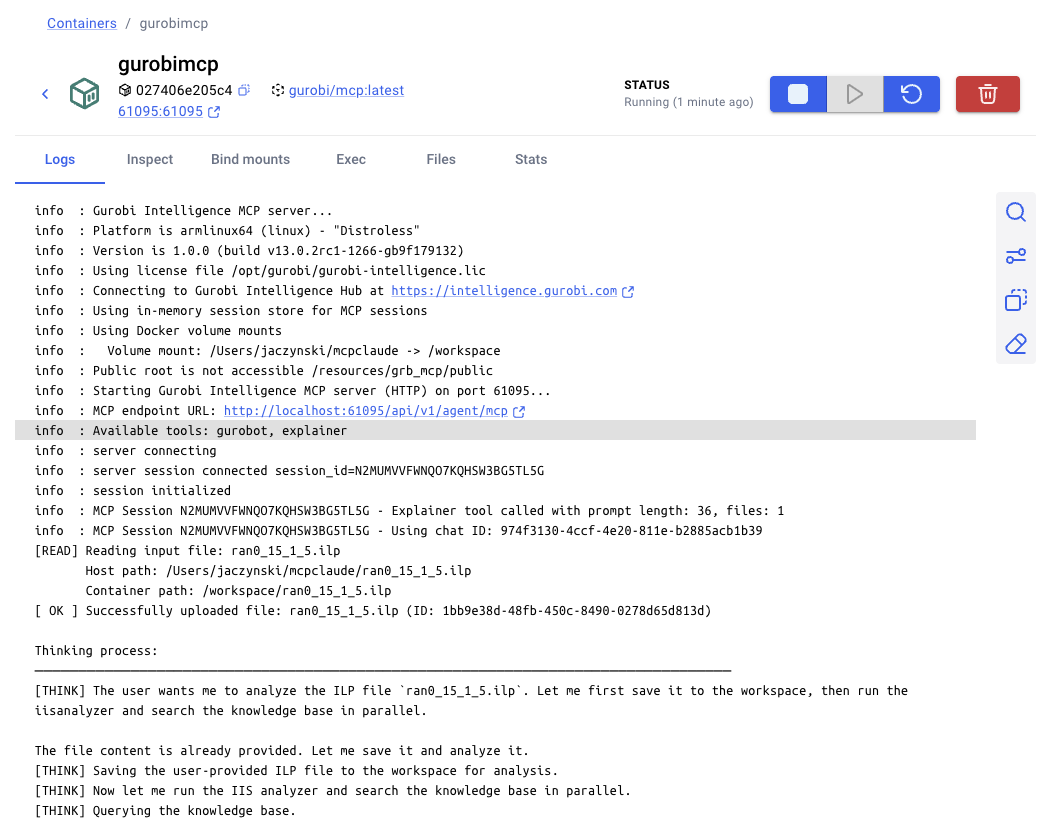
The same output is available from the command line:
docker logs -f gurobimcp
Monitoring MCP Sessions
Every MCP interaction is recorded in the Intelligence Hub. Open the MCP section from the left sidebar to review your MCP sessions, including the agent used, the title of the request, token usage, length, and timestamps.
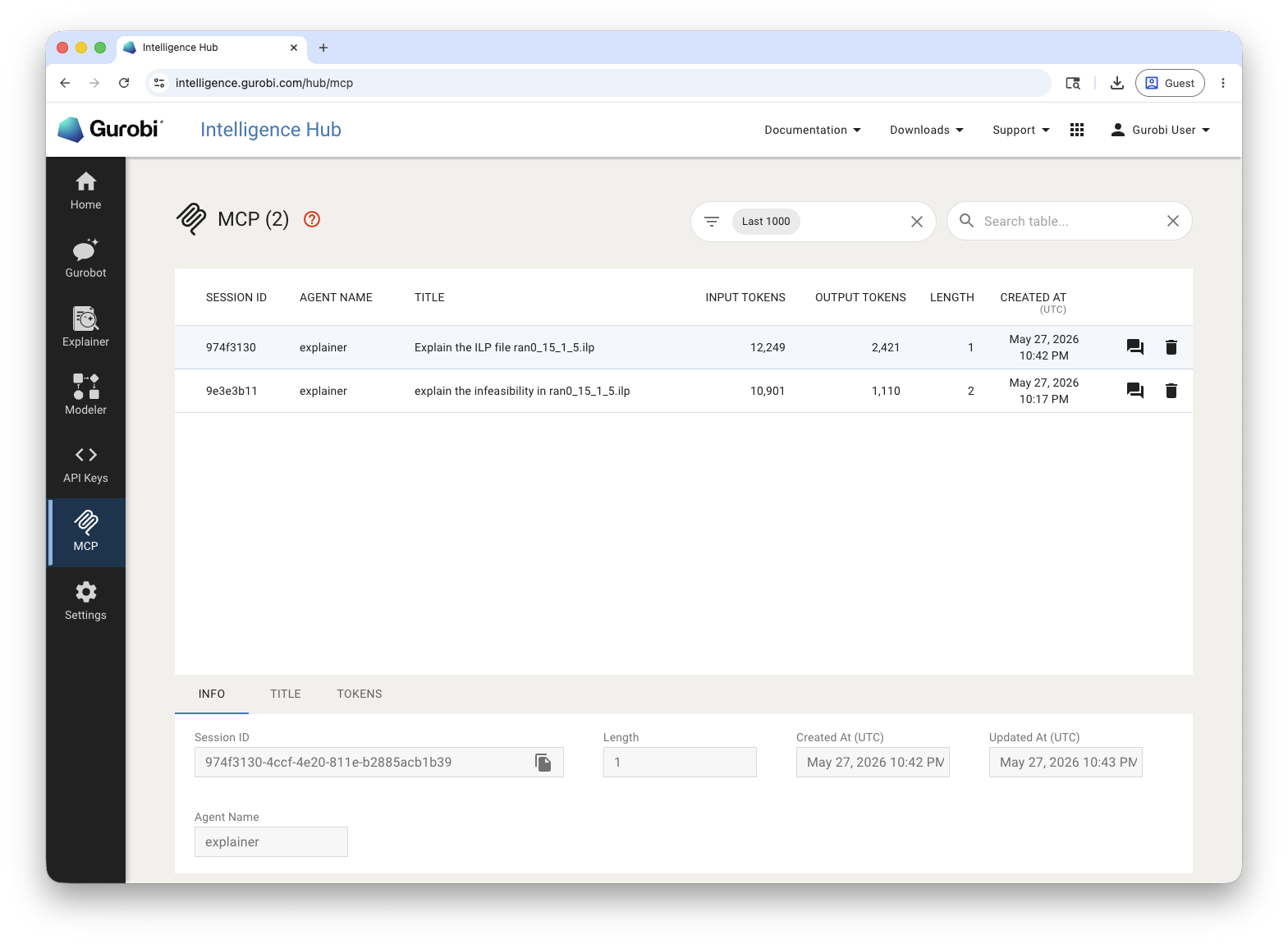
For each session you can:
Open the chat view to inspect the full exchange between the MCP client and the agent, including any reports or files generated during the session.
Review the data exchanged across the session in the INFO, TITLE, and TOKENS tabs at the bottom of the page.
Delete an individual session to permanently remove its data.